
While using CRM Malaysia, it is common that you would like to send one or two attachments to your customers.
The attachment that we meant here is the link attachment, or a image attachment. We have provided this type of attachment for user’s convenience. Sent time for the email will be shorter compare to emails with attachments inside.
Besides that, there is a file size quota preventing users to upload a large file. Sending link or image attachment would not have space limitation imposed. You could send as many links or images (stored in the system) you would like without worrying the limits.
Thus, it’s our pleasures to have a demonstration for you on how to send attachment.
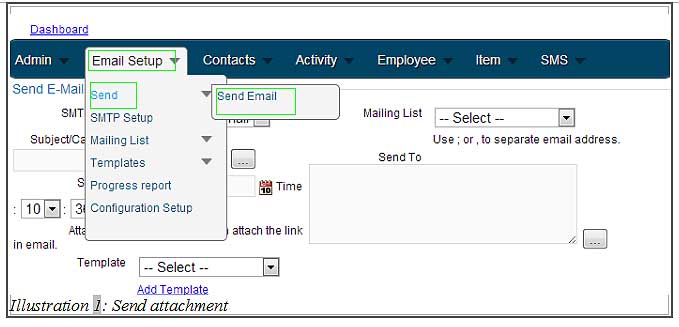
1. Firstly, go to Email Setup > Send > Send Email for sending a mail.
Please click on image to view clearer.
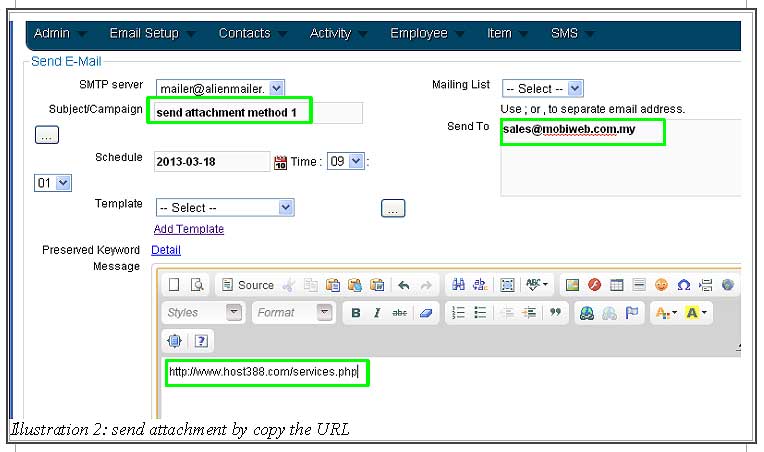
2. Before attaching an information, please make sure that the SMTP Server, Subject, Email address column is filled. You can include the link on the Message column. There are three different ways to include a link or an image.
The first method is through copying and pasting the URL link as shown below.
Please click on image to view clearer.
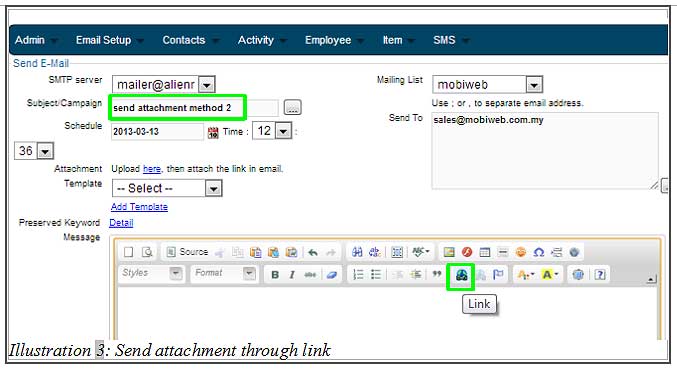
3. The second method is through adding a hyperlink. Click the hyperlink icon.
Please click on image to view clearer.
4. Paste the URL in the field provided. Then, click OK.
Please click on image to view clearer.
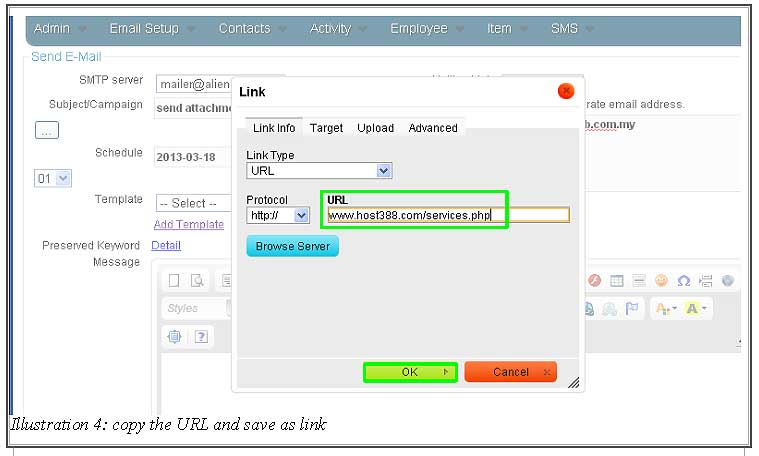
5. You could see a link to appear in the message field provided after going through the second method.
Please click on image to view clearer.
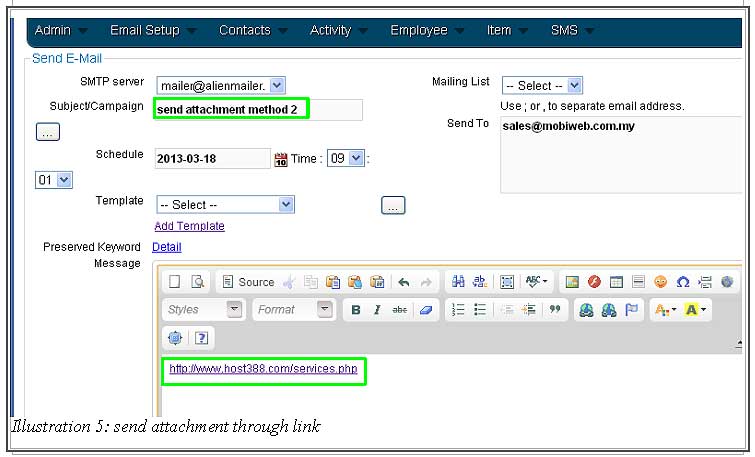
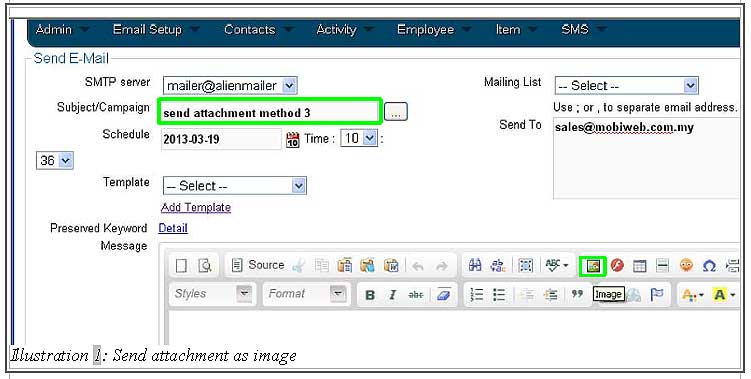
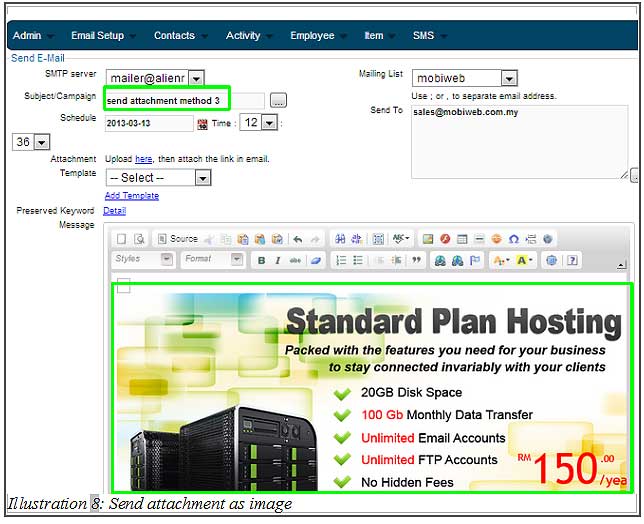
6. The third method is adding the image directly into the email. Click on the Image icon as shown in the illustration below. This method would enable your images to be sent together with your email.
Please click on image to view clearer.
7. Paste the link into the URL field provided and click the OK button.
Please click on image to view clearer.
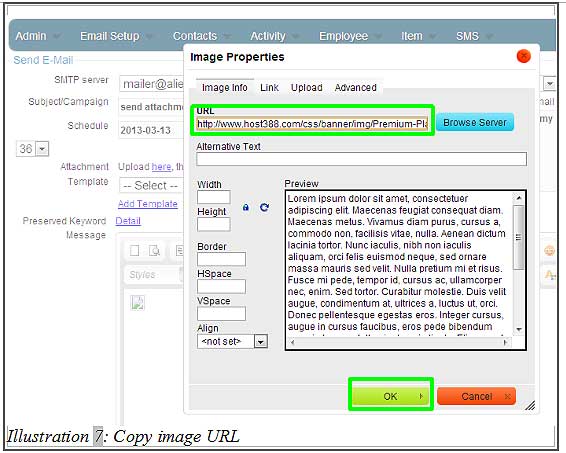
8. After completing the step above, an image would appear in the message as shown below.
Please click on image to view clearer.
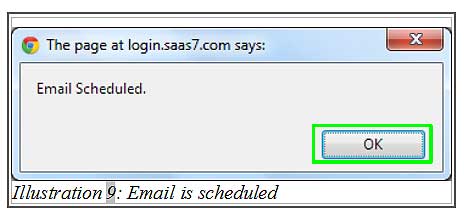
9. Click send and a message will be prompt to inform you that the email would be sent based on the scheduled time.
Please click on image to view clearer.