
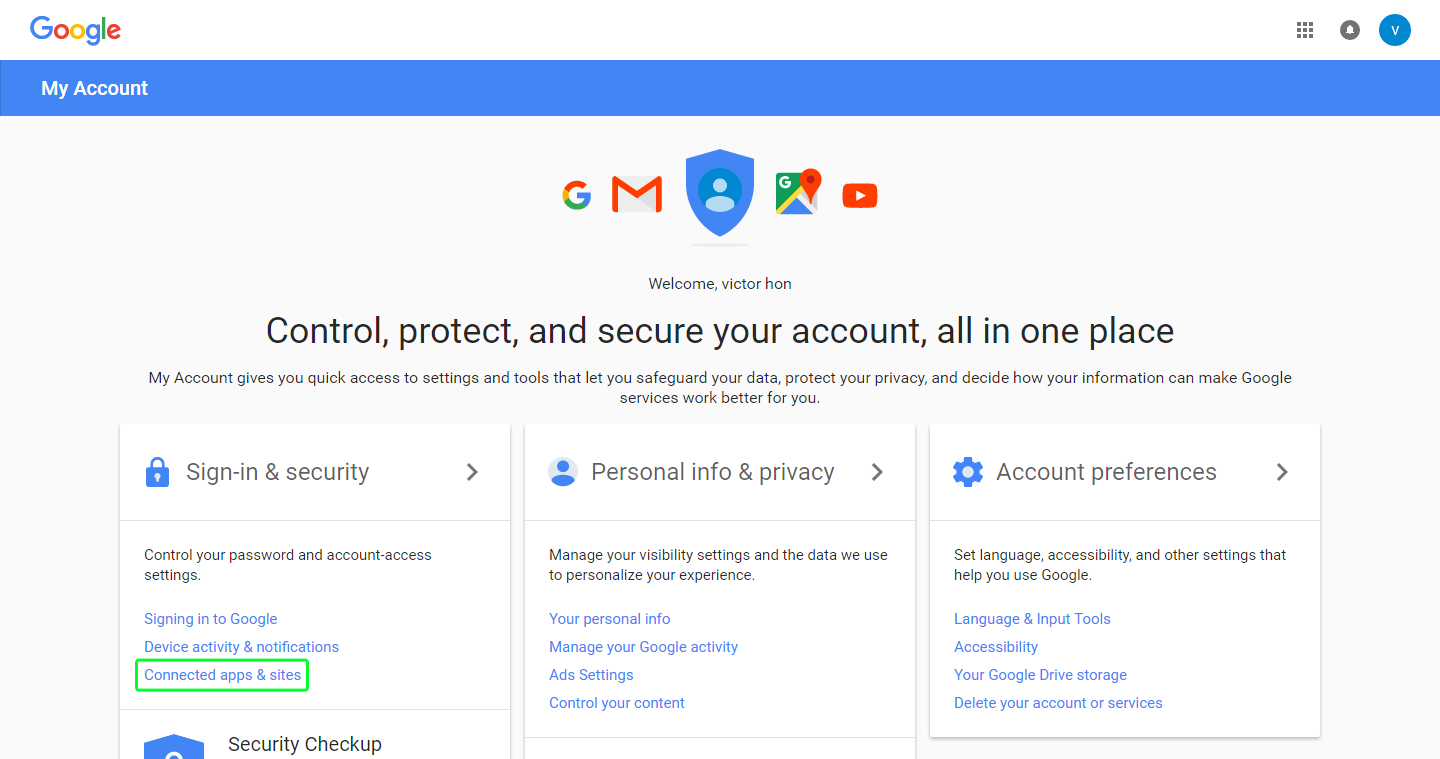
1. Proceed to https://myaccount.google.com/ and login with your Google account. Then, click on the “Connected apps & sites” link.
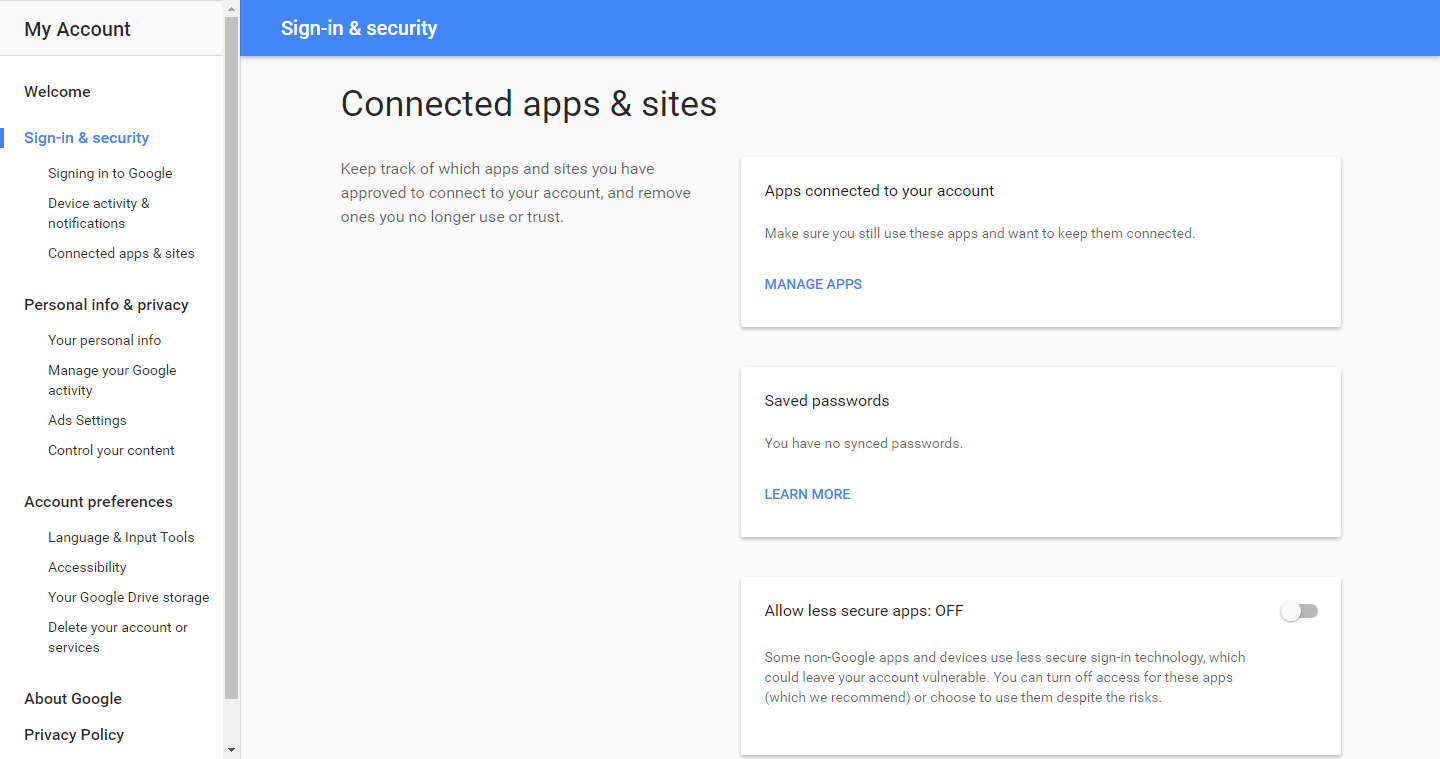
2. Scroll down and you will see the option “Allow less secure apps: OFF”. Please click on the toggle to turn the option ON.
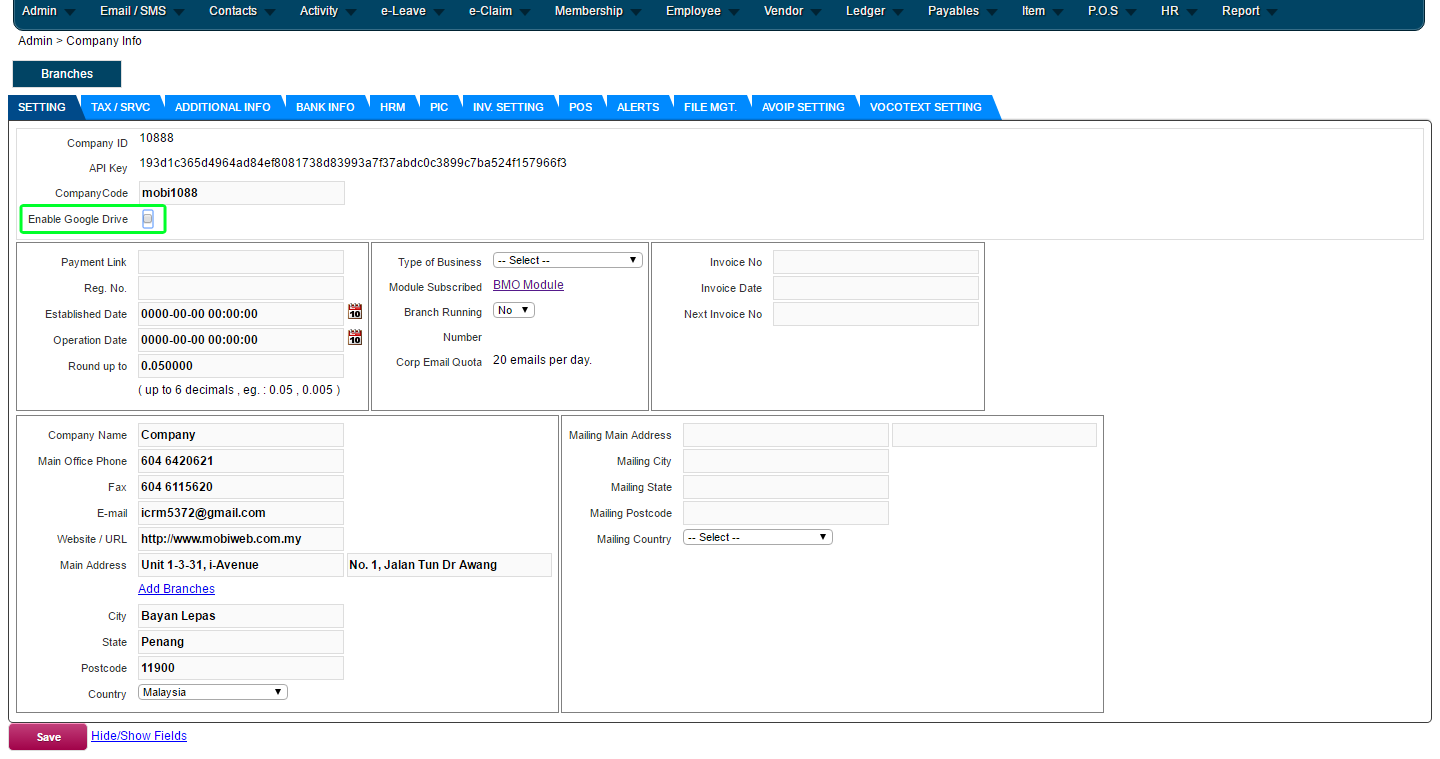
3. You are now ready to link your Google Drive account with BMO. Return to your “Company Info” page, and put a tick in the “Enable Google Drive” option. Click save to submit the changes.
4. A new window will popup, directing you to a permission page by Google. Please click on the “Allow” button.
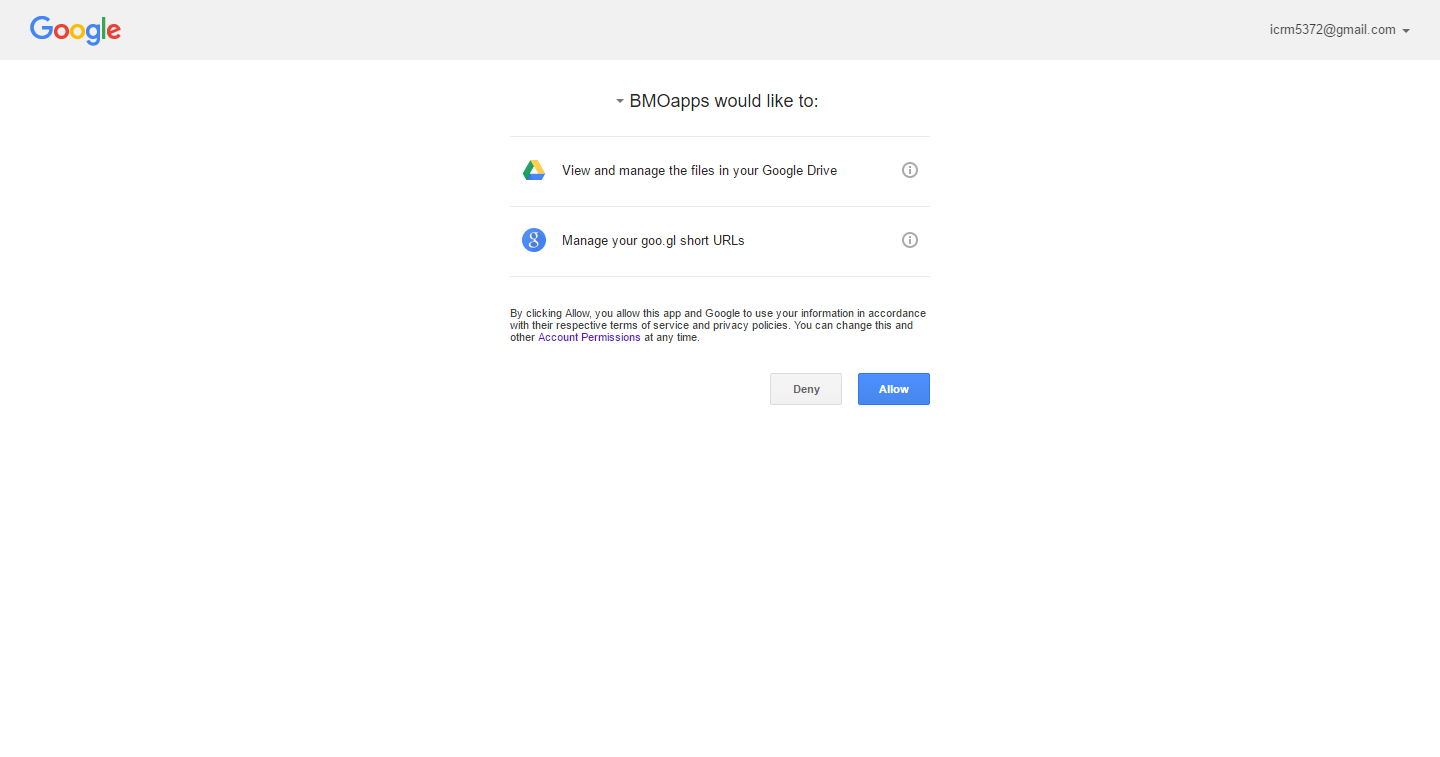
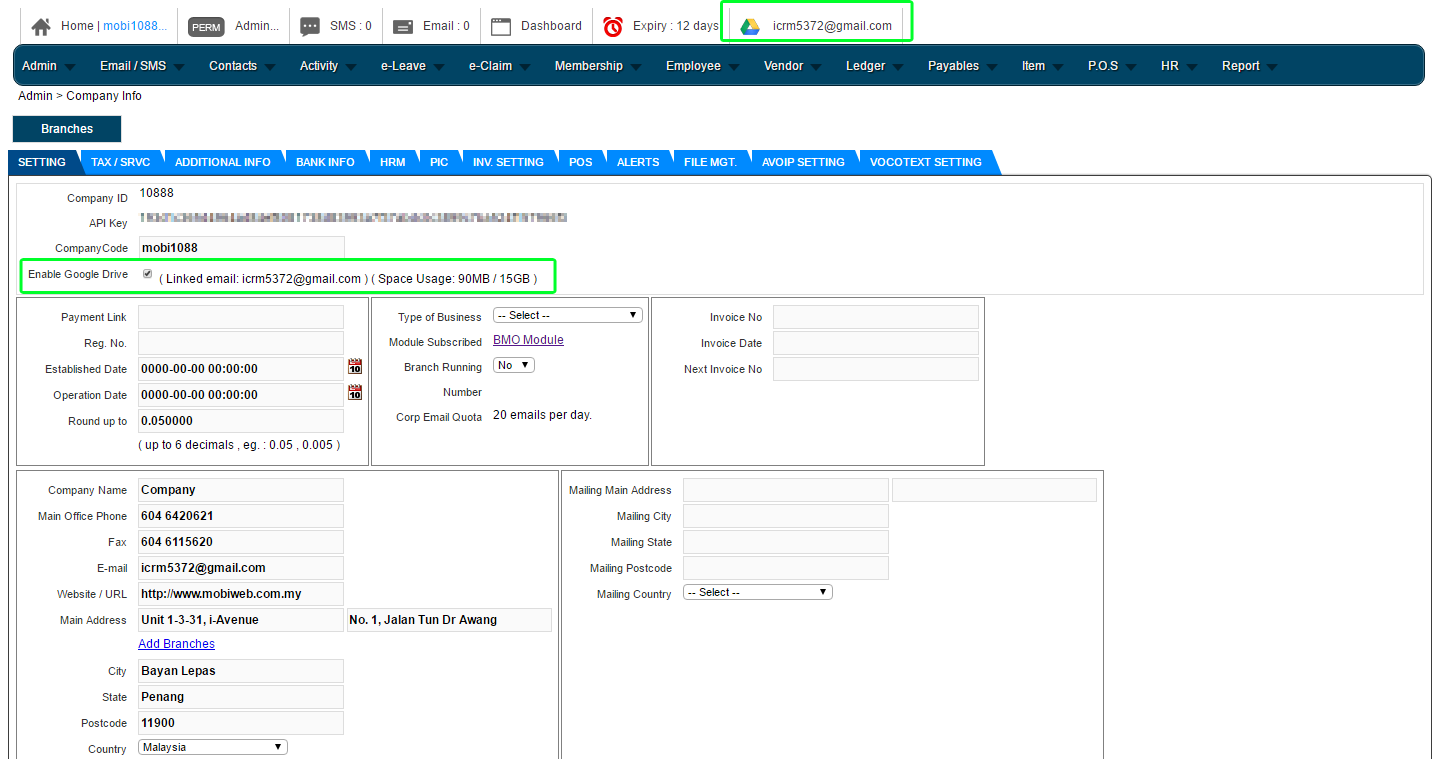
5. Once successful, the linked email will be shown on the top bar and beside the “Enable Google Drive” option. You can also monitor how much space is left in your Google Drive account on this page.