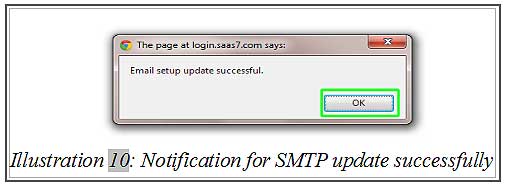

In CRM Malaysia, we allow you to choose between using your own SMTP Server or iCRM’s AlienMailer’s. For example, you may use Gmail’s SMTP or your domain name.
By using BMO, you can send emails to anyone using our alienmailer.com SMTP server. Otherwise, you can also create your own company’s email SMTP account in BMO and use it to send emails to your CRM system contacts.
The tutorial below will show you how to add new SMTP account.
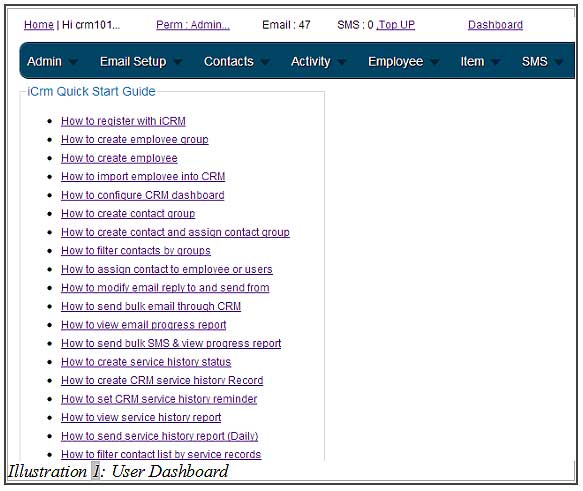
1. When adding new SMTP account (Email Setup > SMTP Setup ), click on “New SMTP Acc” on your top left corner of your browser, just below the navigation bar menu.
Please click on image to view clearer.
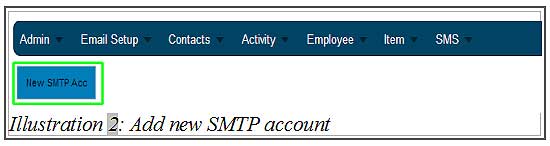
2. After clicking on “New SMTP Acc”, a form will appear. You need to fill in some details about your new SMTP account. For example, SMTP Host, SMTP Port, From E-mail, From Name, SMTP Username, Password, Reply To, Security (choose SSL for Gmail) and Test email address (for Testing). After filling in the details of the SMTP account, click “Add”.
Reminder: The password must be same as your email password. If you update your password of your email account, you need to update the details of the SMTP account too.
Hence, we suggest you to create a new email account for this purpose.
Please click on image to view clearer.
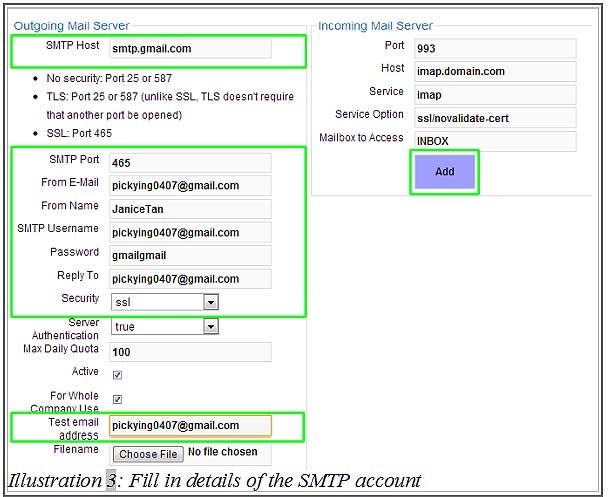
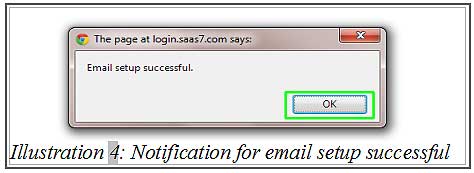
3. If you have setup your email SMTP successfully, you will receive a pop up notification as shown as below. Click on “OK”.
Please click on image to view clearer.
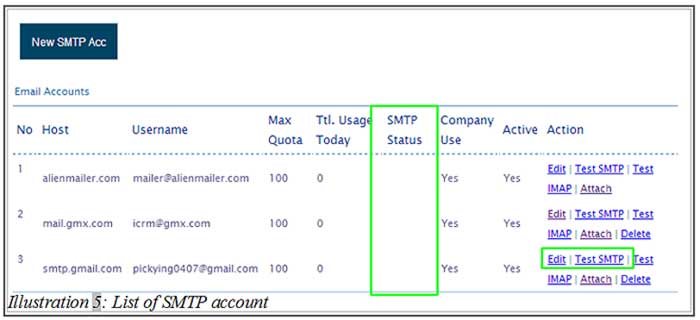
4. You can test the usability of new SMTP by clicking on “Test SMTP” in the column “Action”. You also can check the SMTP status in the column “SMTP Status”.
Please click on image to view clearer.
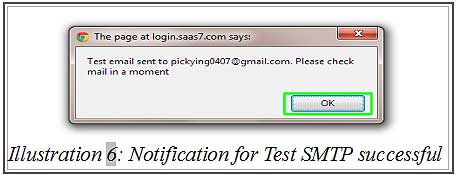
5. If the SMTP test is successful, you will receive a pop out notification as shown as below to inform you to check your mailbox. Click “OK”.
Please click on image to view clearer.
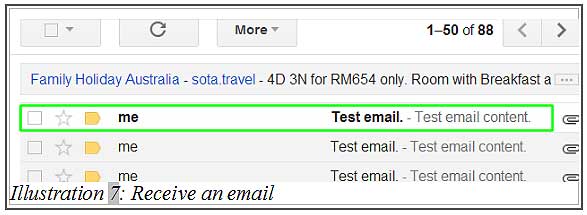
6. Then, you may sign in to your company’s email to check your mailbox. If you receive the email, it shows that you have successfully added your SMTP account.
Please click on image to view clearer.
7. If the SMTP test is unsuccessful, you will receive a pop up notification as shown as below. Click “OK” to dismiss the message.
Please click on image to view clearer.
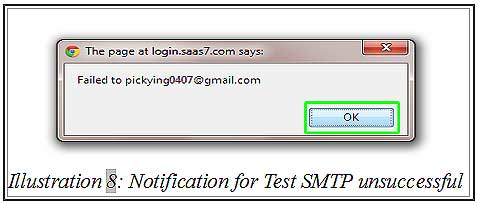
8. The “SMTP Status” column will state the reason for the unsuccessful SMTP test.
In this case, please click “Edit” to edit your details in that SMTP account. Refer to Illustration 5 as shown as above. After updating your details, click “Update” to update your SMTP account again.
Please click on image to view clearer.
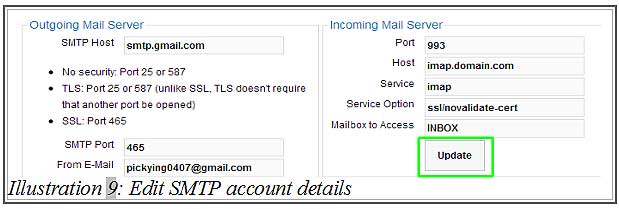
9. After updating the SMTP account successfully, you will receive a pop out notification as shown as below. Click “OK”. Repeat step 4 and step 5 to test the SMTP again.
Please click on image to view clearer.