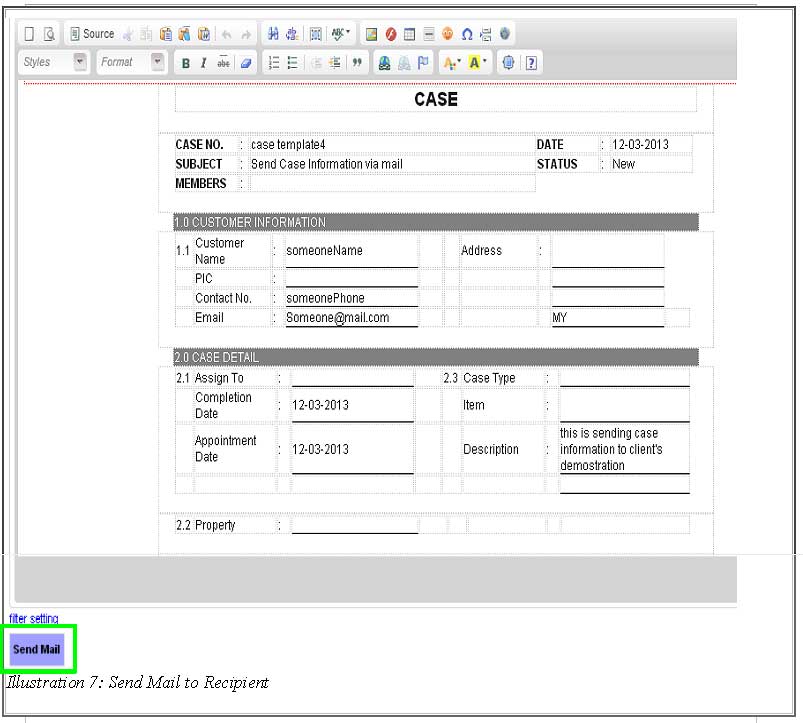

At times, customer may require some case information from your company to followup or check on the project or task they have with you. Hence, CRM Malaysia has created a function that allows your employee or sales team to easily send case information through email. This way, your customers will receive complete information from your company without missing any details.
In this tutorial, we would like to do a demonstration on how to send a case information to contact person.
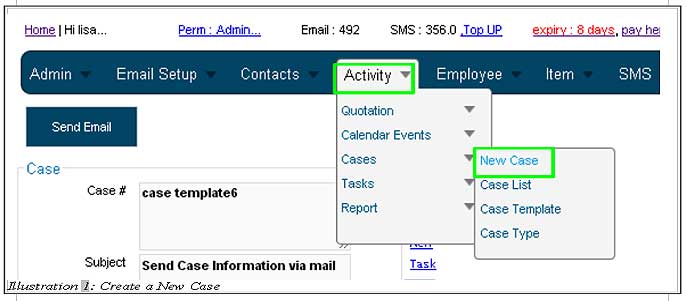
1. Firstly, go to Activity > Cases > New Case that could be found on the menu.
Please click on image to view clearer.
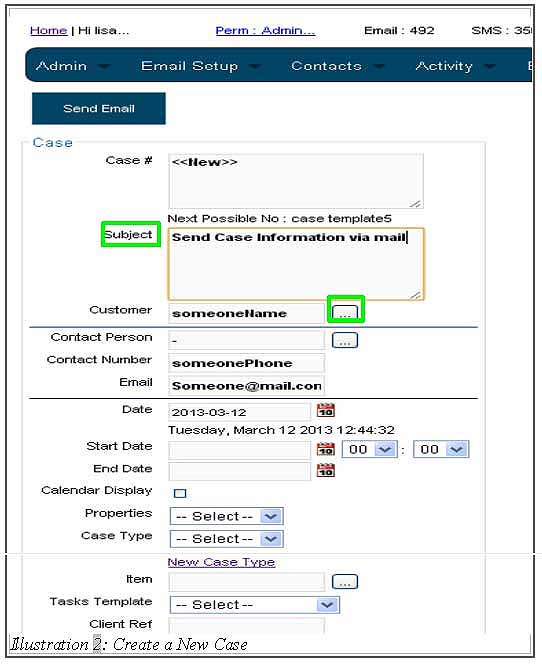
2. Fill in all the information that is necessary and select the contact person that you want to send the mail to from customer column as demonstrated in the illustration below.
Please click on image to view clearer.
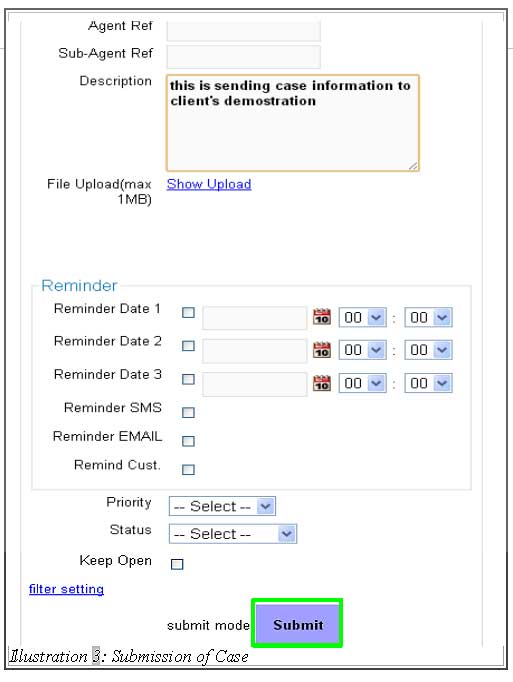
3. After you have filled in the details, click on Submit button to submit the case.
Note: It all depends on your company if you would like to have the additional information such as reminders, reference IDs or start date of the case.
Please click on image to view clearer.
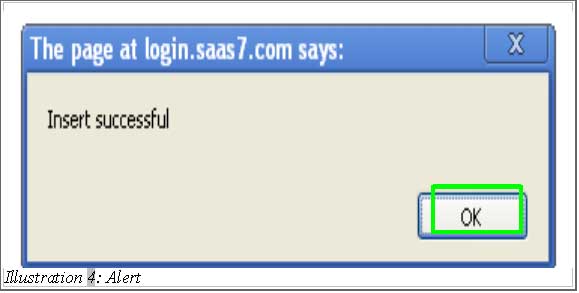
4. A alert message wouldpop up to inform you that the case has been inserted.
Please click on image to view clearer.
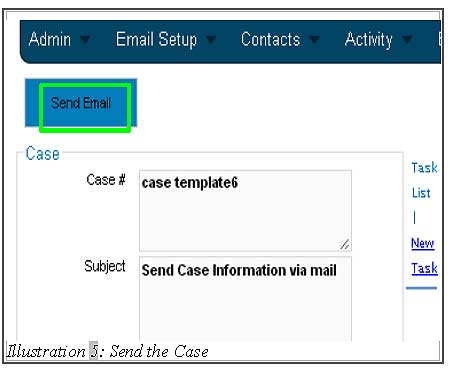
5. Next, click on the Send Email button on top of the left corner of your screen.
Please click on image to view clearer.
6. Check to make sure the information is correct.
Please click on image to view clearer.
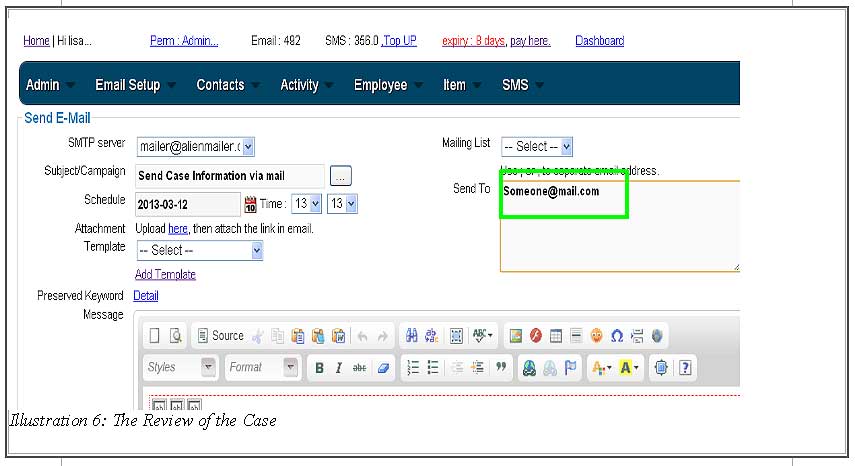
7. After confirming the information is correct, click on Submit button and the email will be sent out.
Please click on image to view clearer.